can You press the power button and… nothing. No fan, no beep, no logo — and on an HP laptop, not even the little white power light or the orange charging light. The charger is plugged in, but the machine is completely dead. It looks like the worst kind of failure. In reality, this is one of the most common faults we see on a “dead” laptop, and nine times out of ten it lives in one specific place on the motherboard: the main power rail.
If your HP laptop is not turning on — dead, not charging, and with no light at all — you’re in the right place. Here’s a full teardown of exactly that fault, an HP that came in with no power and wouldn’t turn on, so you can understand what’s actually happening inside, how we diagnose it in minutes, and why the repair is usually far cheaper than people fear.
What “dead” actually means
When a laptop is truly dead — no lights, no fan, no picture — the fault is almost always before the machine ever gets a chance to switch on. The charger delivers around 19 volts to the board, and that voltage has to travel through the input stage of the motherboard before it can feed everything else. If that first power rail is broken, the laptop can’t even begin its start-up sequence. That’s why you get total silence rather than a flicker, a boot loop, or a black screen with a running fan.
So the golden rule in the workshop: don’t chase the screen, the RAM or the operating system on a dead laptop. Follow the power. A laptop that is not turning on with zero lights is almost always a power-delivery problem, not a software one.
The symptoms of this fault
- No power light and no charging light when the charger is connected — the laptop reads as completely dead and not charging.
- No fan spin, no HP logo, no picture on the screen.
- No change with the battery removed and running on the charger alone.
- The charging port looks perfectly fine (and often is — the fault is deeper in).
How we diagnose it — step by step
This is the exact process from the repair above, and it’s the same one we teach in our motherboard lessons.

- Rule out the charging port. A quick visual and a voltage check at the port. On this HP the port was fine — 19 volts arriving exactly as it should.
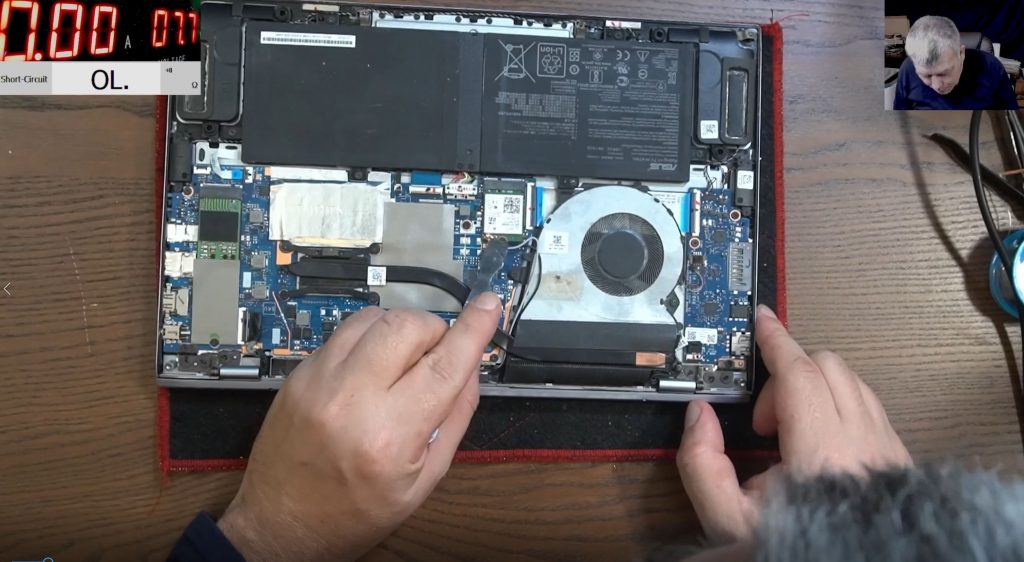
- Test the main 19V power rail on the board. With the charger connected, we measure the input rail using a bench power supply as a reference. This is where the fault reveals itself.
- Read the tell-tale number. Instead of 19 volts, we measured 0.8 volts on the rail. A rail that should be sitting at 19V but reads under one volt means the voltage is being blocked or dragged down between the charging port and the rest of the board.
- Trace the input MOSFETs. On the input you’ll find two power MOSFETs in series — the first one takes the charger’s 19V in, passes it to the second, and then through a current-sense resistor out to the main rail. We had 19V going in and only 0.8V coming out, with no gate voltage switching the MOSFET on. That’s the culprit stage.
- Check for a dead short. Before condemning anything, we inject 19V after the current-sense resistor to see if the rail is shorted to ground. On this board there was no short — so the problem wasn’t a blown capacitor dragging the rail down; the MOSFET simply wasn’t passing power through.
While the board was open we also spotted a little liquid damage and rust — a reminder that a “dead” laptop very often hides a past spill, even when the owner doesn’t remember one. It’s always worth checking both sides of the board — and where corrosion has spread beyond the power stage, the job stops being a quick bridge and becomes a laptop liquid damage repair, where acting quickly matters far more than it does here.
The fix — and why the smart repair is sometimes a bridge
With 19V present on the input, no short on the rail, and no gate signal opening the MOSFET, the cleanest fix here was to remove the faulty input MOSFET and fit a properly fused bridge from input to output. The moment we did, the charger light came on, the fan spun up, and the laptop powered on and charged normally — a five-minute fix.
Could you spend an hour chasing why the gate voltage went missing — a protection condition, a temperature or lid sensor, a schematic deep-dive? Absolutely. Sometimes that’s the professional thing to do. But on a working machine that now powers and charges perfectly, the honest answer is that the extra hours of hunting rarely change the outcome for the customer — they just add cost. Good repair is as much about judgement as it is about soldering.
If you want to understand why those two input MOSFETs matter and how to test them safely, that groundwork is covered in our component-level motherboard repair work — it’s the single most useful thing to learn if you want to fix dead laptops.
Should you try this yourself?
If you’re comfortable with a multimeter, a bench power supply and a soldering iron — and you understand series MOSFETs and power rails — this is a very satisfying repair. If any of that sentence was unfamiliar, please don’t gamble with your laptop: probing the wrong point or bridging the wrong component can turn a cheap fix into a write-off. Board-level power faults are unforgiving.
And do check that the symptom really is a power symptom. If the fan spins or a light comes on but the machine still won’t boot or show a picture, the 19V rail is doing its job and you’re looking at a different fault entirely — often the firmware, which we walk through in our guide to reprogramming the BIOS on an HP laptop.
This is exactly the kind of job we do every day. If your HP laptop is not turning on or not charging — no power, no charging light, no picture — you don’t need to be local: our UK mail-in laptop repair service lets you post it to the workshop, we diagnose the power rail at component level, and you only pay for a fix that works. Most “dead” laptops are far more repairable than the big chains will tell you.
Frequently asked questions
My HP laptop won’t turn on and there’s no charging light — is it dead for good?
Usually not. A total dead-with-no-charging-light symptom almost always points to the input power stage on the motherboard, which is a repairable component-level fault — not a reason to scrap the machine.
Does removing the battery help?
It’s a good test. If the laptop still shows no lights on the charger alone with the battery out, the fault is on the board’s power rail rather than the battery — which is exactly what we found here.
Is it worth repairing rather than replacing?
Very often, yes. A power-rail repair like this is typically a fraction of the cost of a new laptop, and it saves your data and your machine. Book a repair and we’ll tell you honestly if it’s worth it before any work is done.
Dead HP (or any) laptop? Send it in for a component-level diagnosis — every repair is done personally, and you only pay if we fix it.